Manual Installation
Install on a single device by hand — ideal for a pilot or a technician build. On macOS, install the configuration profiles before the package so permissions are granted before the agent runs. On Windows, a single MSI does everything.
Choose the browsers to configure
Both installers open a Configuration screen that collects the Quilr tenant id and lets you choose which browsers receive the Quilr extension and native messaging host. Select the browsers in use on the device, then continue. The available browsers differ by platform.
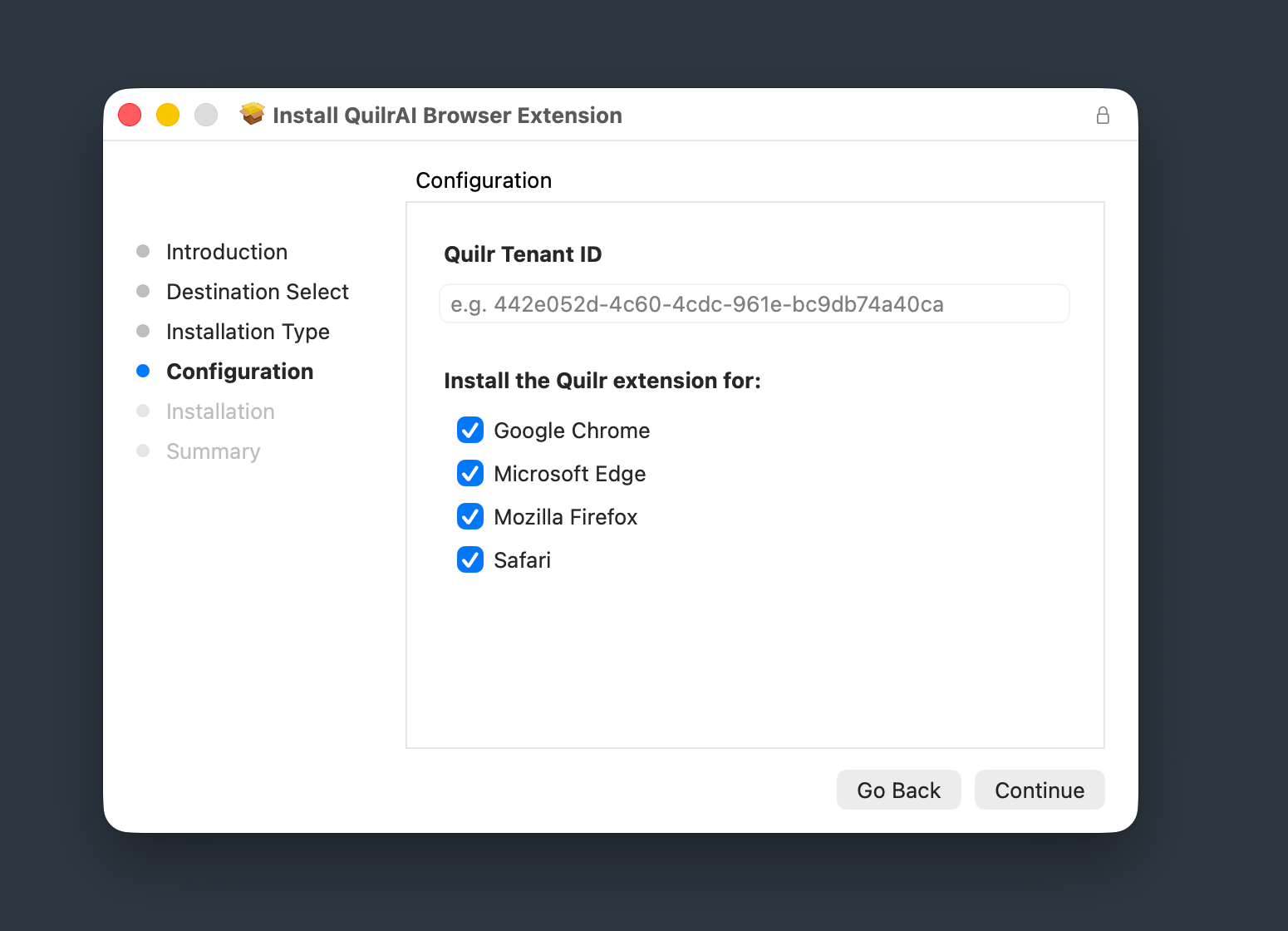
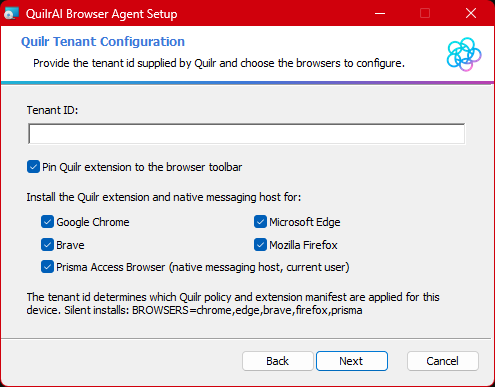
BROWSERS=chrome,edge,brave,firefox,prisma.
Extension identity
The Quilr browser extension is identified by a fixed ID. After the MSI / pkg installs it, jump straight to its row in the extensions page using the direct deep-links below.
| Extension name | Quilr |
| Extension ID | piajhjohgigijkddhdpgbjdcfhmammbk |
| Edge deep-link | edge://extensions/?id=piajhjohgigijkddhdpgbjdcfhmammbk |
| Chrome deep-link | chrome://extensions/?id=piajhjohgigijkddhdpgbjdcfhmammbk |
| Brave deep-link | brave://extensions/?id=piajhjohgigijkddhdpgbjdcfhmammbk |
edge:// / chrome:// links from a regular web page (a hardening rule against drive-by extension prompts). Copy the URL with the Copy button above, then paste it into the browser’s address bar.Prerequisites for this device
- Tenant ID from Quilr support; admin rights on the Mac
- Access to the Quilr console (
https://app.quilr.ai/en/settings/browser-extension/deployment) for the tenant profile - Network reachability to
quilr-extensions.quilr.ai
Download the three artifacts
macOS needs two required things — the pkg + the tenant .mobileconfig for the extension — plus an optional third (the File-Access .mobileconfig) that can only be applied via MDM. On an unmanaged Mac, grant Full Disk Access by hand instead (see 1.3 below).
| # | Artifact | Source | Tenant-specific? |
|---|---|---|---|
| 1.1 | Extension pkg — quilr-installer-mac.pkg | https://quilr-extensions.quilr.ai/installer/mac/quilrai-browser-extension.pkg | no |
| 1.2 | Extension .mobileconfig | Quilr Console → /en/settings/browser-extension/deployment | yes |
| 1.3 | File-Access .mobileconfig — optional | https://quilr-extensions.quilr.ai/browser-agent/prod/mac/quilr_browser_util_Files_Access.mobileconfig | no — shared & optional (MDM only) |
1.1 — Browser extension package
curl -fsSL -o ~/Downloads/quilr-installer-mac.pkg \
  "https://quilr-extensions.quilr.ai/installer/mac/quilrai-browser-extension.pkg"
1.2 — Extension config profile (from Quilr Console)
Jump to Settings → Browser Extension → Deployment in your tenant Console. Under MDM, select macOS and “Manual / no MDM”, then download the .mobileconfig to ~/Downloads/. This profile carries the tenant-specific Chrome / Edge / Brave force-install policy.
1.3 — File-Access config profile (MDM only — optional on unmanaged Macs)
macOS only honours Full Disk Access (FDA) configuration profiles pushed by an MDM. sudo profiles install on the command line cannot grant FDA — the kernel ignores it. If your fleet is MDM-managed, download the profile and push it via Jamf / Kandji / Intune-mac. On an unmanaged Mac, skip the profile and use the manual toggle below.
curl -fsSL -o ~/Downloads/quilr_browser_util_Files_Access.mobileconfig \
"https://quilr-extensions.quilr.ai/browser-agent/prod/mac/quilr_browser_util_Files_Access.mobileconfig"- Open System Settings → Privacy & Security → Full Disk Access.
- Find
quilr-native-messaging-agent-macin the list (it appears once the pkg in step 1.1 is installed). - Toggle it On; authenticate with Touch ID or your admin password when prompted.
Install the extension profile first
sudo profiles install -path ~/Downloads/<tenant-specific>.mobileconfig

# File-Access profile (1.3) is MDM-only — `profiles install` cannot grant FDA.
# On an unmanaged Mac, grant FDA via System Settings (see 1.3 manual fallback).
Approve the extension profile when prompted in System Settings → Privacy & Security → Profiles. On an MDM-managed Mac the File-Access profile is delivered separately by your MDM and lands silently.
Install the package second
sudo installer -pkg ~/Downloads/quilr-installer-mac.pkg -target /The native agent installs and registers the WebExtension into your browsers automatically. Validate in Step 4.
PayloadIdentifier.Download the MSI
Invoke-WebRequest 'https://quilr-extensions.quilr.ai/installer/windows/Quilr.msi' -OutFile $env:TEMP\Quilr.msiInstall with your tenant ID
msiexec /i "$env:TEMP\Quilr.msi" TENANT=<TENANT-ID> /qn /norestartTENANT (not TENANTID — that one is for the endpoint agent). Without it, the extension installs but stays idle.BROWSERS By default the MSI configures every supported browser. To limit the install, add the BROWSERS property — a comma-separated list drawn from chrome, edge, brave, firefox, prisma (include only the browsers in use on the device). This is the same set shown in the installer’s Configuration screen above.msiexec /i "$env:TEMP\Quilr.msi" TENANT=<TENANT-ID> BROWSERS=chrome,edge,brave,firefox,prisma /qn /norestartMSI property reference (optional)
TENANT is the only required property. Everything else has a sensible default and is only needed for
special network paths (proxy, pinned update URLs), scoping which browsers get configured, or overriding the
managed-storage environment. All values are persisted under
HKLM\SOFTWARE\Quilr\Install so the updater and log-uploader reuse them on subsequent runs.
| Property | Values / example | What it does |
|---|---|---|
TENANT | GUID, e.g. TENANT=2fc6fb7e-be22-47b7-b9cb-71471eec5627 | Required. Tenant ID — flows into managed storage (PLASMO_PUBLIC_TENANTID), extension URLs, the native-messaging-host manifest, and logs. Interactive (non-silent) installs prompt for it. |
PINNED | true (default) / false | Pin the extension to the browser toolbar. false omits the pin fields. Not persisted across upgrades. |
ENVIRONMENT | USA-POC (default), USA-Prod, India-POC, India-Prod, MEA-POC | Backend environment label; persisted as …\Install\Environment. |
PROXY | host:port, or none/direct, or system/auto | Egress proxy for the updater / log-uploader’s own calls; persisted as …\Install\Proxy. |
EMAIL | user@corp.com | Persona email → quilr_persona_email in managed storage; persisted as …\Install\PersonaEmail. |
BROWSERS | chrome,edge,brave,firefox,prisma or all (default) | Which browsers get configured. Persisted as …\Install\Browsers. |
SKIPDISCOVERY | 1 / 0 | 1 = the updater never calls the discovery service; environment comes from EXTENSIONENV only. Persisted as …\Install\SkipDiscovery. |
EXTENSIONENV | "K=V;K=V" (one quoted, ;-separated list) | Managed-storage environment keys (Chrome/Edge policy + Firefox JSON). Merged over discovery values, or the sole source when SKIPDISCOVERY=1. Persisted as …\Install\ExtensionEnv. |
UPDATEURL | manifest URL | Pins the Chromium update_url (default …/<TENANT>/manifest.xml). Persisted as …\Install\UpdateUrl. |
FIREFOXINSTALLURL | .xpi URL | Pins the Firefox install_url (default …/firefox/<TENANT>/….xpi). Persisted as …\Install\FirefoxInstallUrl. |
SKIPEXTENSIONSETTINGS | 1 / 0 | 1 = don’t write the ExtensionSettings registry entry (allow/force lists are still written) — use when another tool owns ExtensionSettings. Persisted as …\Install\SkipExtensionSettings. |
Examples
msiexec /i "$env:TEMP\Quilr.msi" TENANT=<TENANT-ID> PROXY=proxy.corp.local:8080 BROWSERS=chrome,edge /qn /norestartmsiexec /i "$env:TEMP\Quilr.msi" TENANT=<TENANT-ID> SKIPDISCOVERY=1 EXTENSIONENV="PLASMO_PUBLIC_API=https://api.quilr.ai;PLASMO_PUBLIC_REGION=us" /qn /norestartSKIPEXTENSIONSETTINGS=1 so the installer doesn’t overwrite your existing ExtensionSettings policy, and add the Quilr entry to your own policy instead (see Step 5 for the JSON).Confirm
The MSI installs the native messaging agent and force-installs the WebExtension via browser policy. Open
edge://extensions / chrome://extensions — Quilr should appear, enabled and “Installed by
your organization.” Full validation is in Step 4.
TENANT · the extension shows
in the browser. Verify it’s actually working in Step 4.